Introduction
In the vibrant world of gaming, experiencing lag can be a frustrating roadblock. Game lag refers to the delay between a player's action and the game's response, which can significantly impact your gaming experience, especially in competitive scenarios. With Malaysia's gaming community rapidly growing, understanding and troubleshooting game lag has become more crucial than ever in 2026. Whether you're battling it out in an online match or exploring vast open worlds, a smooth gaming experience is essential for enjoyment and success. This article serves as your comprehensive game lag troubleshooting guide, tailored specifically for Malaysian gamers.
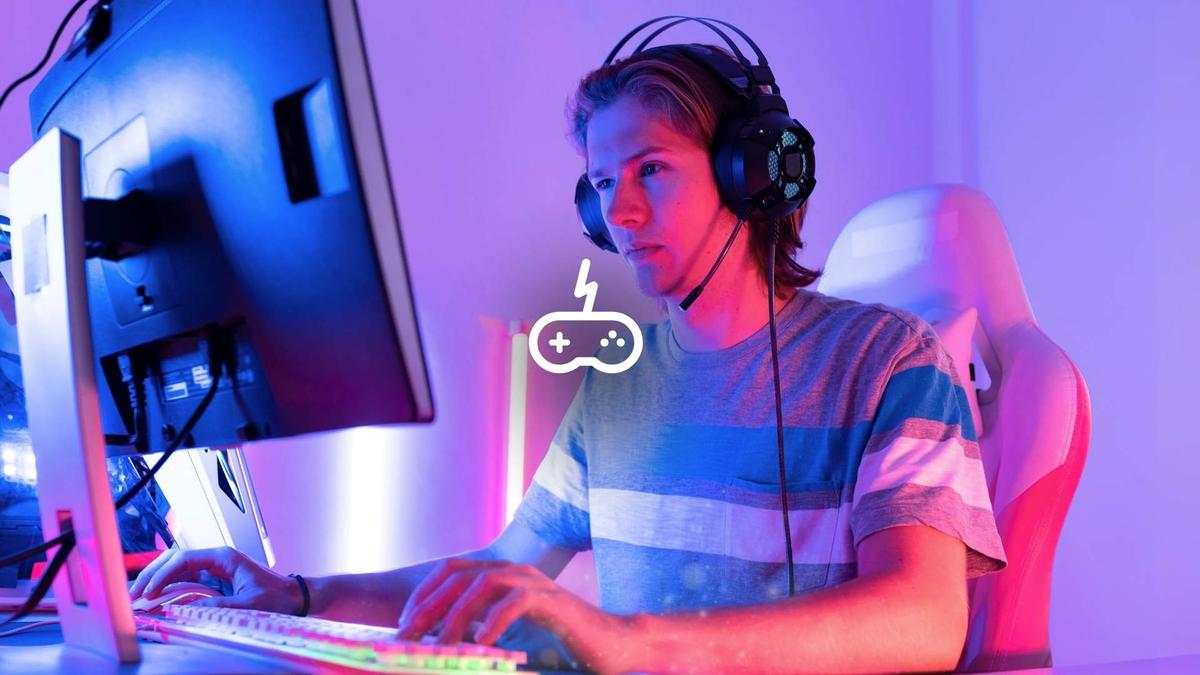
Common Causes of Game Lag
Before diving into solutions, it's essential to identify the common causes of game lag. Understanding these factors can help you troubleshoot effectively.
- Network Issues: One of the primary culprits behind game lag is a poor internet connection. High latency and packet loss can occur due to various factors, including network congestion, distance from the game server, or an unstable Wi-Fi connection. For Malaysian gamers, using a wired Ethernet connection instead of Wi-Fi can significantly reduce latency.
- Hardware Performance Limitations: Your gaming rig's specifications can directly impact performance. Insufficient RAM, an outdated graphics card (like NVIDIA or AMD), or a slow CPU (such as Intel processors) can lead to lag. If your hardware isn't up to par with current game requirements, you'll likely face performance issues.
- Software Optimization Failures: Sometimes, the software you're running can be the cause of lag. Background applications consuming bandwidth or system resources can affect your game's performance. Additionally, outdated drivers or game files can lead to optimization failures.
Step-by-Step Troubleshooting
Now that we've identified the common causes of game lag, let's go through a step-by-step troubleshooting process to help you diagnose and fix these issues.
Step 1: Check Your Internet Connection
Begin by testing your internet speed using tools like Speedtest.net. A stable connection with a low ping and high download/upload speeds is crucial for online gaming. If you notice significant latency, consider switching to a wired connection.
Step 2: Optimize Your Network Settings
Reset your router and ensure that no other devices are hogging bandwidth. Consider configuring Quality of Service (QoS) settings on your router to prioritize gaming traffic. This can help reduce lag during intense gaming sessions.
Step 3: Upgrade Your Hardware
If your hardware is outdated, it might be time for an upgrade. Look into newer graphics cards from NVIDIA or AMD that can handle the latest game requirements. Additionally, increasing your RAM can improve overall performance.
Step 4: Update Drivers and Game Files
Ensure that all your drivers, especially graphics drivers, are up-to-date. Visit the NVIDIA or AMD website for the latest updates. Similarly, verify the integrity of game files through platforms like Steam to ensure no corrupted files are causing lag.
Step 5: Manage Background Applications
Close unnecessary applications running in the background to free up system resources. Use Task Manager to identify and terminate processes that are consuming too much CPU or memory.
Step 6: Lower In-Game Graphics Settings
Adjusting your game settings can have a significant impact on performance. Lowering graphics settings such as shadows, textures, and anti-aliasing can improve frame rates and reduce lag. This is particularly helpful if you're using older hardware.
Optimizing Game Settings
In 2026, optimizing your game settings is more important than ever, especially with the advancements in graphics and gameplay. Here are some tips to ensure you get the best performance:
- Resolution: Lowering your in-game resolution can greatly enhance performance. If you're struggling with lag, consider setting it to 1080p or even lower if necessary.
- Frame Rate Limit: Setting a frame rate limit can prevent excessive performance demands and maintain consistent gameplay. Aim for 60 FPS for a smooth experience.
- V-Sync: While V-Sync can reduce screen tearing, it may introduce additional lag. Consider turning it off if you're experiencing delays.
- Using Game Mode: On Windows, enabling Game Mode can optimize system resources for gaming, helping to reduce lag.
By adjusting these settings based on your hardware capabilities, you can significantly improve your gaming performance.
Conclusion
Game lag can be a significant barrier to enjoying your favorite games, but with the right troubleshooting strategies, you can minimize its impact. By understanding the common causes of lag, following a step-by-step troubleshooting process, and optimizing your game settings, you can ensure a smoother gaming experience. Malaysian gamers, take these tips to heart and level up your gameplay in 2026!
FAQ
What causes game lag?
Game lag can be caused by various factors, including network issues (like high latency or packet loss), hardware performance limitations (insufficient RAM or outdated graphics cards), and software optimization failures (background applications or outdated drivers).
How can I reduce lag in online games?
To reduce lag in online games, consider using a wired Ethernet connection, optimizing your network settings, upgrading your hardware, updating drivers and game files, managing background applications, and lowering in-game graphics settings.